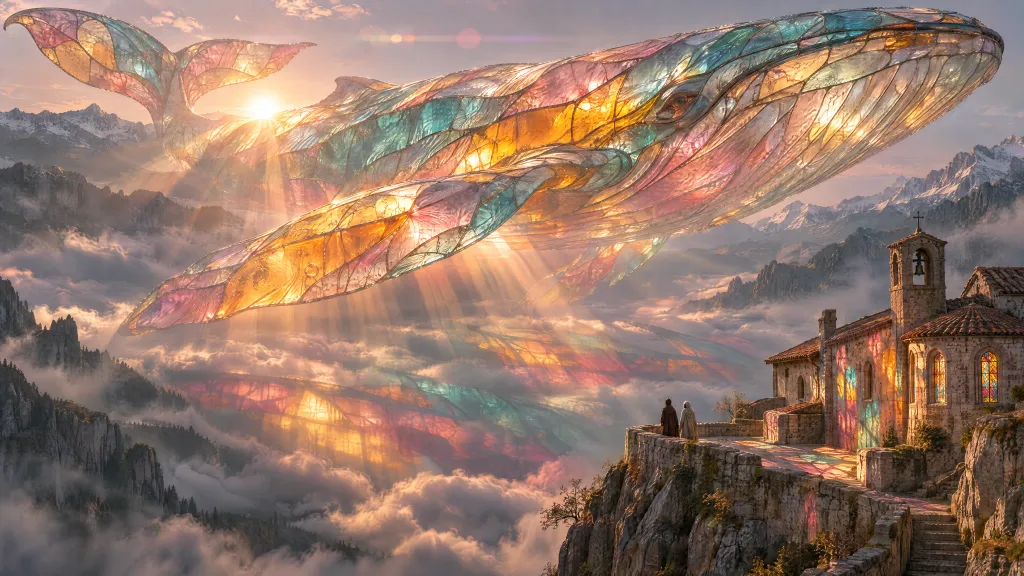
GPT Image 2.6AI Image Generator for 4K & Looping GIF Creation
Create cinematic AI images and looping GIFs from text, prompts, and reference images. Use natural language reasoning, 16-reference image consistency, and transparent backgrounds to bring your ideas to life.
AI GENERATOR WORKSPACE
Text to Image · GPT Image 2.6
Enter a prompt above and generate your image. Each task keeps its own required input and parameter set.
Your processed image will appear here
Your AI-edited image will be displayed here
What Is GPT Image 2.6?
An OpenAI image model family for creating pictures and editing them with text and visual references.
GPT Image 2.6 turns written instructions and reference images into new or edited pictures. Its Flare and Sunburst models give you different starting points for speed and detailed visual work.
You can begin with a description or bring an existing image into the process. The useful question is simple: what should the next version look like?
ChatGPT Images 2.6 is OpenAI's image experience inside ChatGPT. Here, your starting point is the image tool on our studio.
GPT Image 2.6 Features for Your Next Image
Start from a prompt, work from a reference, and choose a model that fits the detail your image needs.
A useful result starts with a clear brief. GPT Image 2.6 supports image generation and editing, so you can explore a new idea or keep working on an existing one.
Create from a written brief
Describe a product scene, illustration, or promotional image in everyday language. Give GPT Image 2.6 a clear subject and a setting, then add the details that matter to your design. For a shop banner, that might mean a pale background and empty space beside the product.
Give reference images a purpose
Use your source photo to explain the subject or visual direction. If you bring several references, say which shows the product and which shows the style. A clear role for each image makes your brief easier to follow and your result easier to assess.
Make a specific change
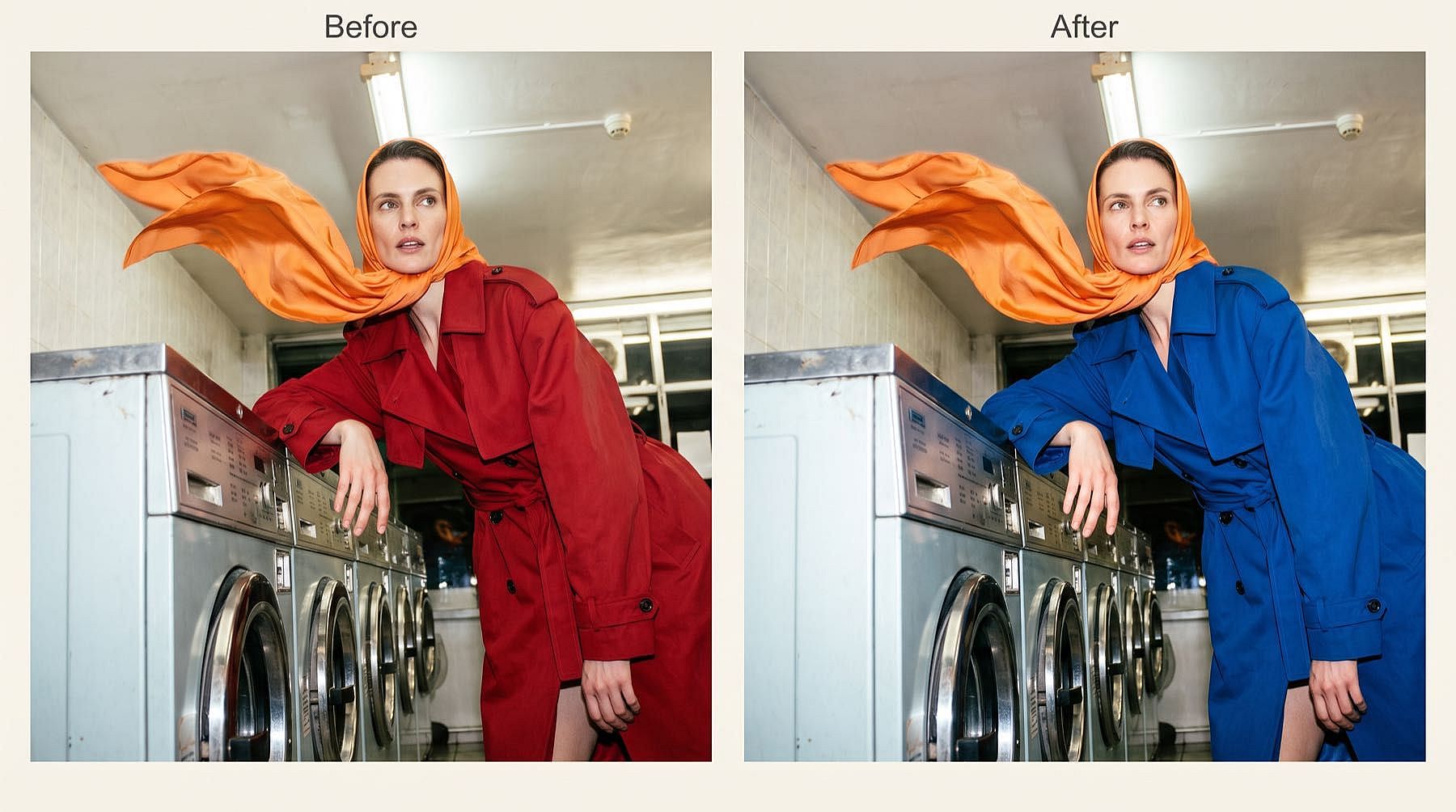
Ask for the next revision directly: a different setting, a warmer light, or a revised piece of text. State the details you want preserved. GPT Image 2.6 can edit existing images, but you should still compare the whole result with your original.
Start with Flare or Sunburst
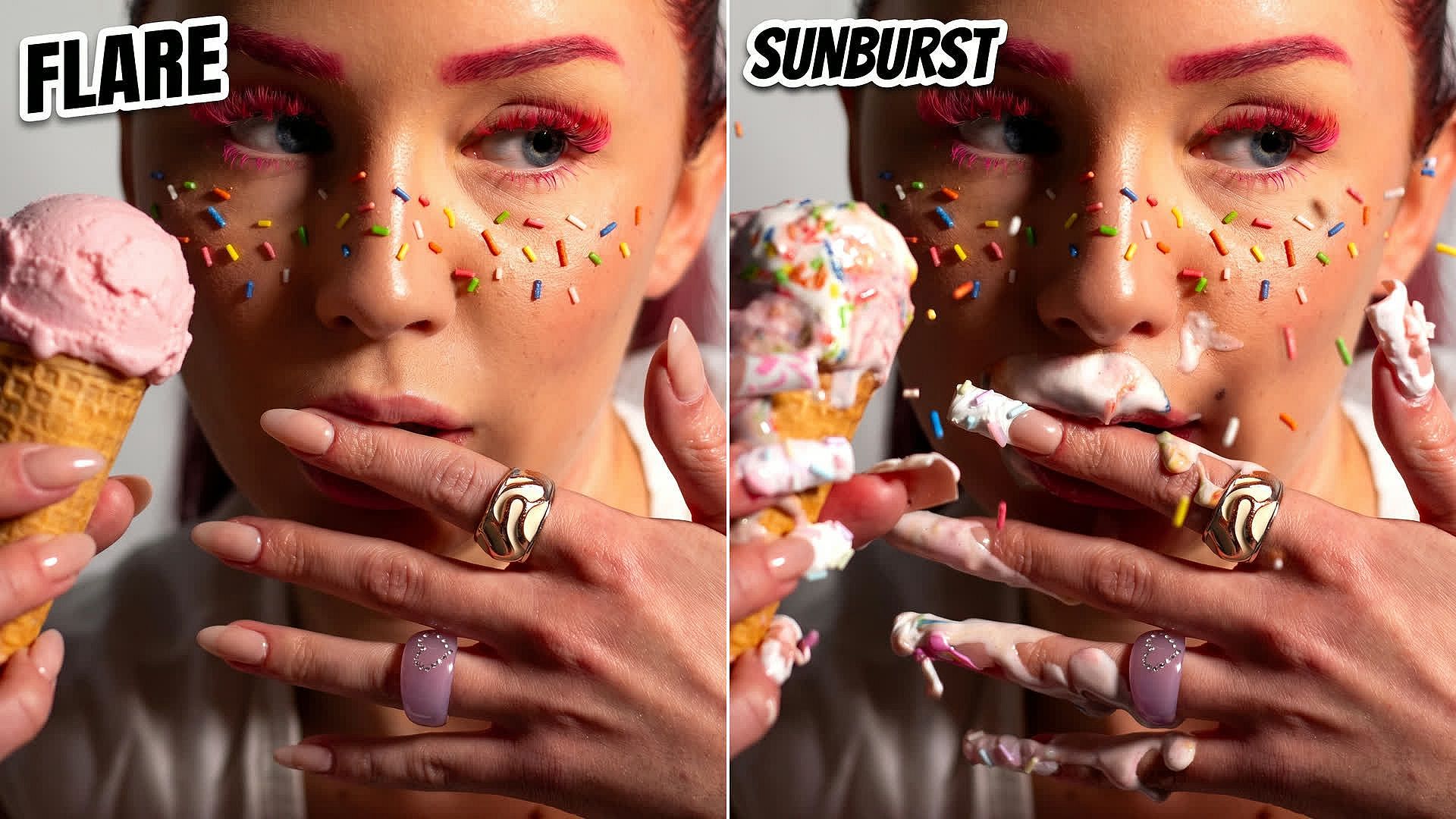
GPT Image 2.6 Flare is designed for fast iteration. GPT Image 2.6 Sunburst is designed for detailed compositions and precise edits. Try the model that matches your immediate task, then compare the same brief if you need a different balance.
Plan for transparent backgrounds
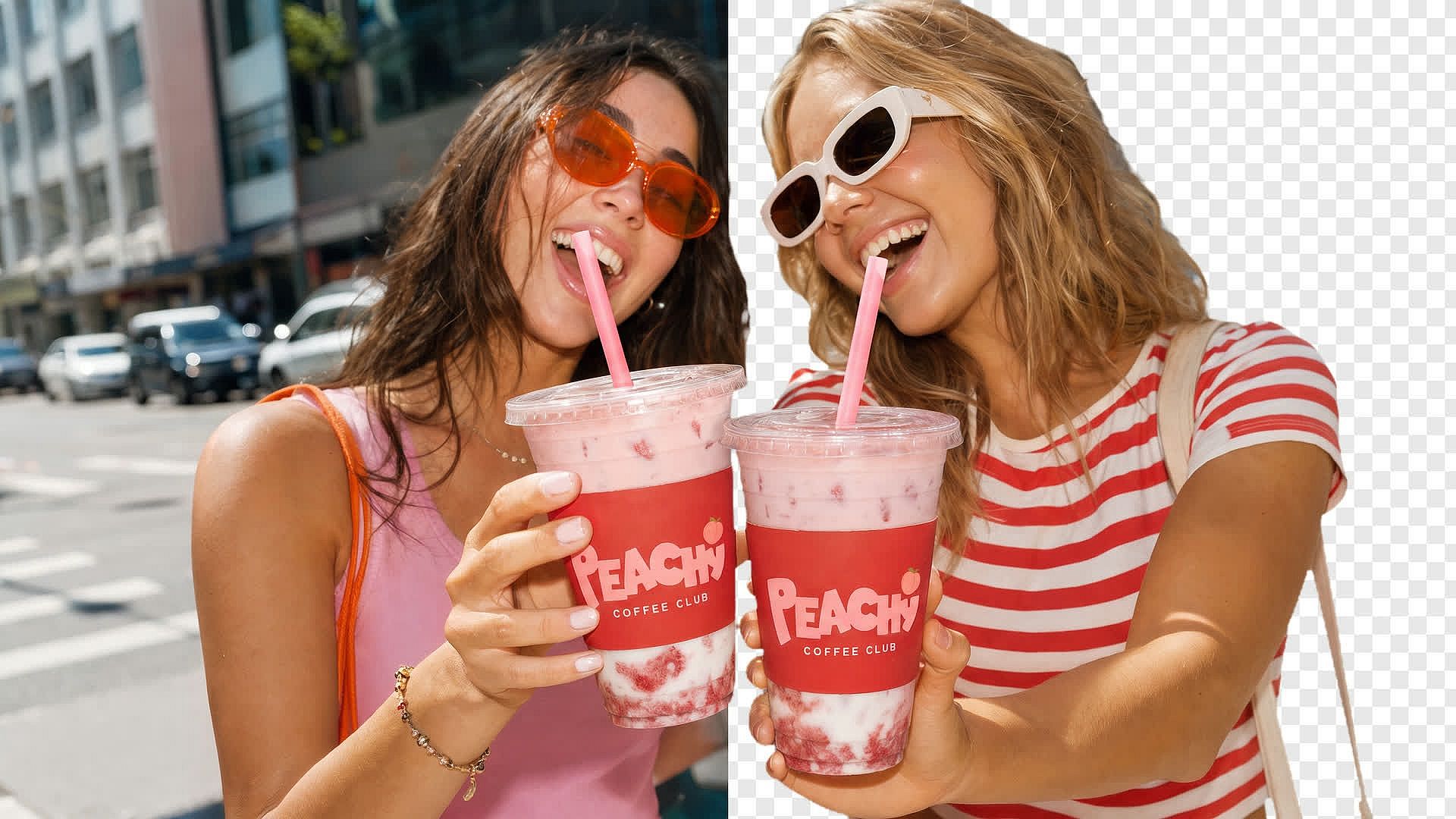
The models support transparent backgrounds for assets such as isolated objects and graphics. When you need a cutout, describe the subject and request a clean boundary. Inspect fine edges before placing the result over another design.
What Can You Create with GPT Image 2.6?
Build a brief for a product scene, a poster, a social graphic, or a still frame for your next project.
Choose the image your project needs before choosing a style. These GPT Image 2.6 prompt ideas are starting points you can adapt with your own subject, colors, and wording.
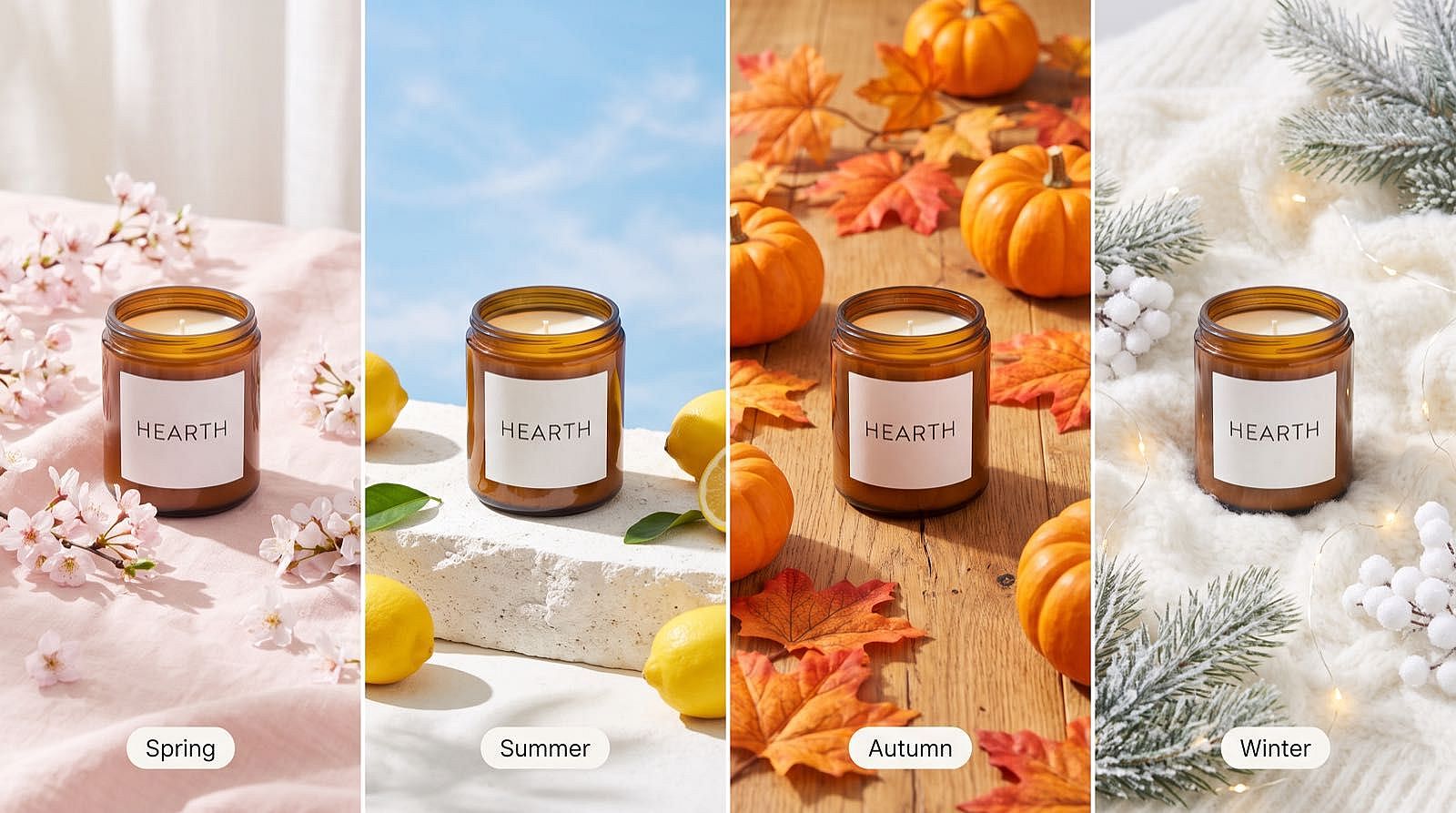
Product scenes
Prompt to try“Place the reference ceramic bowl on a dark wooden breakfast table. Add a folded linen napkin on the left. Keep the bowl's shape, glaze, and painted rim.”
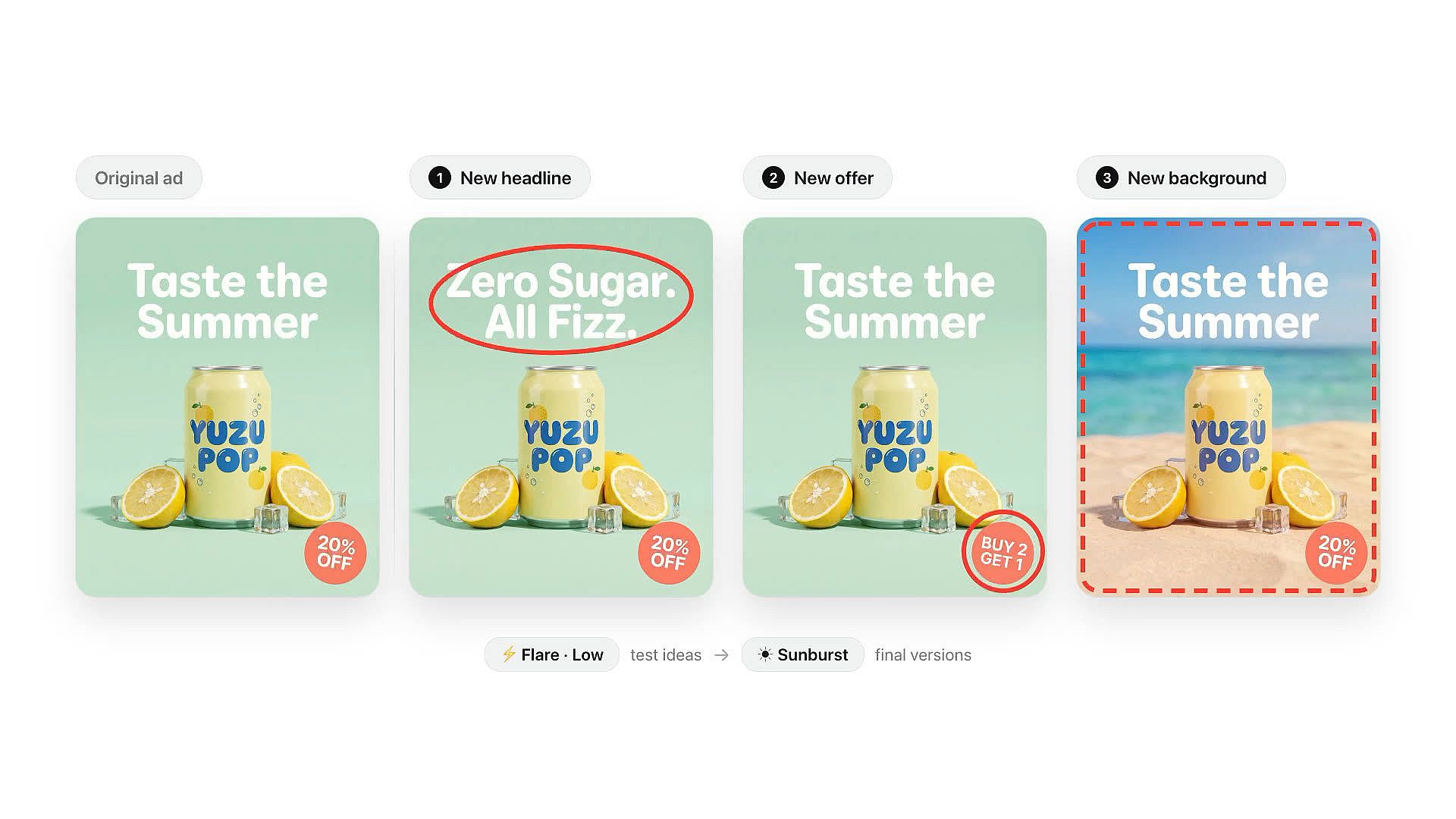
Posters and announcements
Prompt to try“Design a poster for a neighborhood plant swap. Use large green lettering reading 'GROW TOGETHER', a cream background, and simple illustrated leaves around the edges.”
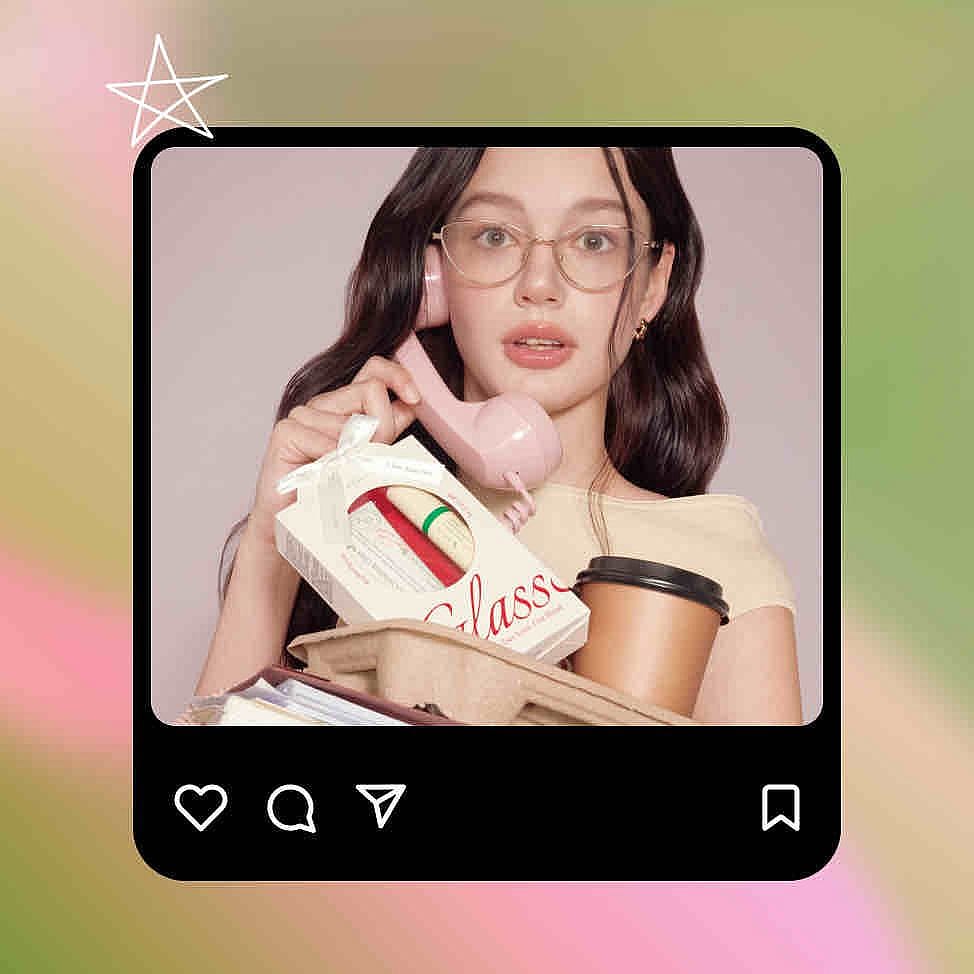
Social graphics
Prompt to try“Create a square illustration of a sleepy orange cat beside an oversized alarm clock. Use flat colors, a pale blue background, and no text.”
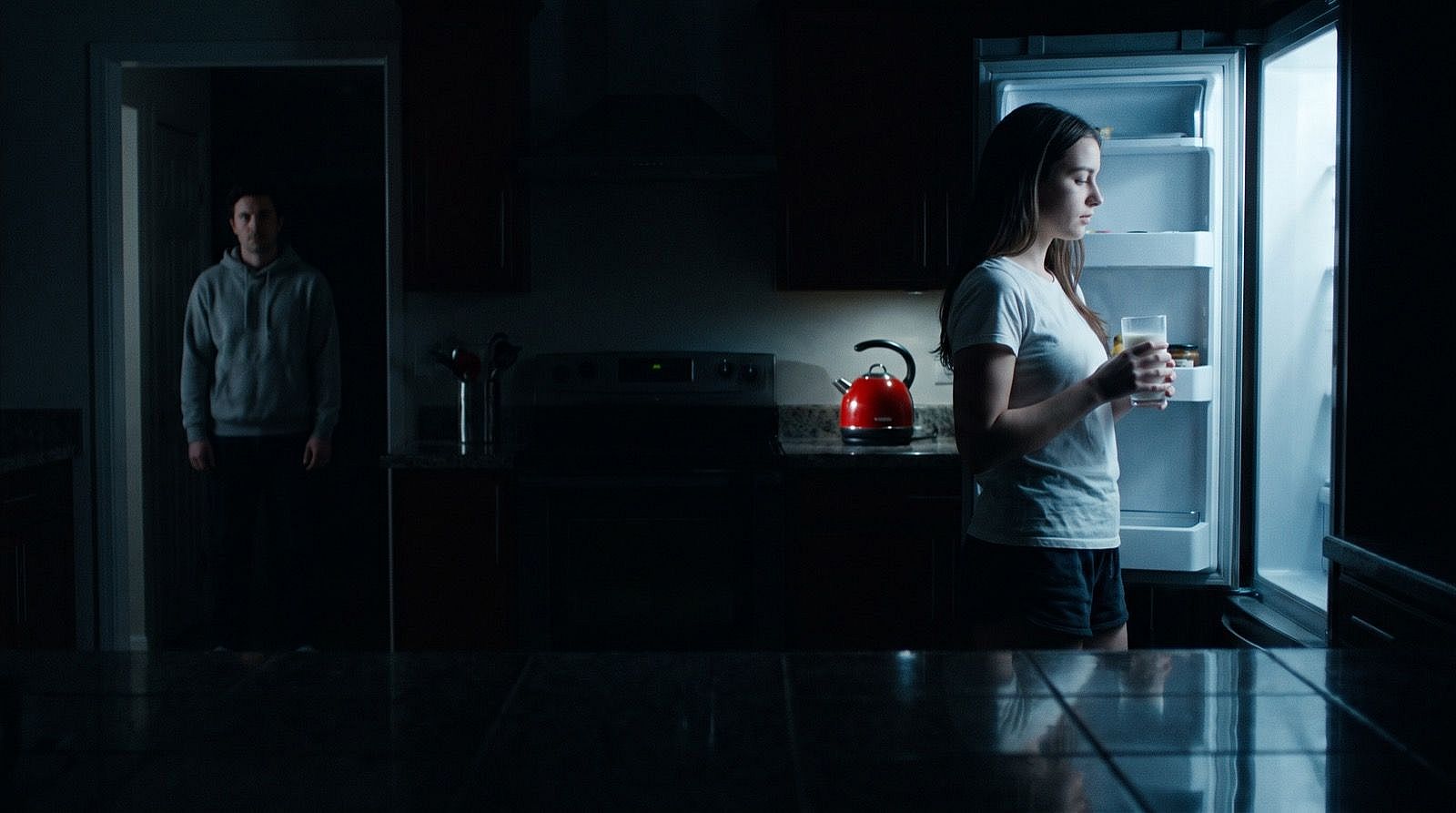
Storyboard frames
Prompt to try“Show a cyclist arriving at a quiet seaside station at dawn. Use a wide view, soft light, and a small red suitcase beside the bicycle.”
See GPT Image 2.6 Examples
Explore twelve images from the OpenAI gallery, then open a favorite to read its prompt.
Browse product concepts, nature photography, paper illustrations, and cinematic scenes. Select an image to see the full composition and its accompanying prompt, then use the idea to shape your next brief.
Cinematic sci-fi hangar
Mechanical flower bouquet
Underwater wildlife
Paper-cut forest
Robot product concept
National park poster
Mechanical watch detail
Lavender at sunrise
Ink-wash temple
Chameleon macro
Paper sculpture city
Rooftop garden
Who Is GPT Image 2.6 Built For?
For people preparing product visuals, social posts, design concepts, and images that need another round of revision.
You do not need the same image for every project. Use GPT Image 2.6 around the task in front of you, from a first visual direction to a focused revision.
Shop owners preparing product visuals
Bring a clear product photo and describe the scene you want around it. Review packaging, shape, and labels before using the result in a listing. Keep the original nearby while you compare options.
Creators planning social content
Use GPT Image 2.6 to explore a visual theme for your next post. Start with the subject and mood, then decide where text or other design elements will sit.
Designers working through feedback
Turn a revision note into a specific editing request. If a client wants a different setting, name that change and list the details already approved. Review the result against the brief before sharing the next version.
GPT Image 2.6 vs 2.5: Which Fits Your Workflow?
Compare the new controls with the image workflow you already trust before changing how you work.
GPT Image 2.6 adds creative options, but a newer version does not make every existing workflow obsolete. Use the same brief and source image to judge what changes for you.
| Your decision | GPT Image 2.6 | GPT Image 2.5 |
|---|---|---|
| Generate or edit an image | Both tasks supported | Both tasks supported |
| Choose a model | Flare for iteration; Sunburst for detail | Flare and Sunburst options also exist |
| Try new output workflows | Official support includes GIF and SVG generation | Do not assume the same new output options are available |
| Keep an established recipe | Test your existing prompts again | Keep using a recipe whose results already meet your brief |
| Compare your actual cost | From 2 credits per image, plus reference image credits | Use the current price shown for your selected settings |
The practical downside of changing versions is the need to check your familiar prompts again. If your current output already matches an approved design, keep it as your reference while testing a new version.
Choose GPT Image 2.6 when its model options and newer creative controls fit the work you want to do. Do not choose it on a promise that every image will be better, cheaper, or finished within a fixed time.
How to Use GPT Image 2.6
Create a new image or edit a reference in three steps, using the GPT Image 2.6 generator above.
Start with your idea, choose your settings, and refine the result.
- 01
Write a prompt or add references
Choose Text to Image to start from a description. For edits, choose Image to Image and upload up to 16 JPG, PNG, or WebP images, each up to 10 MB. Describe what should change and what should stay the same.
- 02
Choose your model and settings
Select GPT Image 2.6 Flare or Sunburst, then choose an aspect ratio, 1K–4K resolution, and output format. Choose a Quality level from Low to Max and check the displayed credit cost.
- 03
Generate, download, and refine
Sign in and select Generate. Wait for your image, then use the download button in the lower-right corner of the preview. To refine it, upload the result in Image to Image mode and describe the next change.
GPT Image 2.6 FAQ
Answers to practical questions about choosing a model, writing an edit, and understanding the available image workflows.
Start with the question that affects your next image. These answers separate model capabilities from the choices you should make when preparing and reviewing your own creative work.
Should I use GPT Image 2.6 Flare or Sunburst?
Start with GPT Image 2.6 Flare when response time is your priority, and Sunburst when detail or edit accuracy matters more. Both models can create and edit images. For a rough visual direction, judge the composition before spending time on small details. For a product close-up, inspect the label, material, and shape. Compare the same prompt and reference if you try both models. Keep the version that meets your brief rather than assuming one choice is right for every project.
How do I edit a photo with GPT Image 2.6?
Provide your photo and describe the change you want, including the details that should stay the same. GPT Image 2.6 supports editing from image inputs. For example, ask for a different background while keeping the subject's clothing and pose. Avoid combining unrelated revisions in the same request when you need to assess one change. Inspect the entire result, because other details can change too. Keep the original file so you can compare the versions and return to the starting point if needed.
Does GPT Image 2.6 support markup-guided editing?
The official GPT Image 2.6 models support markup-guided editing through the image editing API. This uses a separate transparent overlay to indicate where a change should happen. The overlay needs to align with the source image, and the written prompt describes the requested edit. A marked region is guidance, so inspect the rest of the image as well. A tool must expose this workflow before you can draw marks in its interface. If you are using a text editing prompt, identify the object and location clearly instead.
Can GPT Image 2.6 create animated GIFs?
The official GPT Image 2.6 models support animated GIF output. Access to a GIF workflow depends on the tool you are using. When planning a loop, choose a small action with a clear beginning and return point. For example, describe a paper boat rocking gently while the surrounding scene stays still. Keep the requested movement easy to judge, then review the transition between the last and first frames. Treat the animation as a separate output task rather than assuming every still image download will include movement.
Do I need the GPT Image 2.6 API to use this page?
You do not need to write API code to use the image tool on this page. Start with your prompt or reference image in the generator. The GPT Image 2.6 API is a separate route for developers building image features into their own applications. API parameters and upstream billing do not describe every choice in a website's interface. For your image, focus on the subject, composition, and changes you want to make. Review our current tool options and pricing for the workflow you are using here.
Create Your Next Image with GPT Image 2.6
Bring an idea or a reference photo, then describe the image you want to make next.
Start with one clear subject and one useful direction. You can explore a new composition or prepare a focused revision of a picture you already have.
Your first brief does not need to say everything. Name the result you want, review what comes back, and decide what to refine.
GPT Image 2.6 Key Technical Facts & Specifications
- Model Name
- OpenAI GPT Image 2.6 (Dual-Engine: Flare & Sunburst)
- Generation Speed
- Flare engine generates images in ~4.84 seconds, achieving 46% speedup compared to GPT Image 2.5.
- Maximum Resolution
- Supports up to 3840px (4K) Cinema Master Resolution export across 16 aspect ratios.
- Multi-Reference Image Input
- Supports up to 16 reference images simultaneously for subject identity and visual style lock.
- Animated Motion Output
- Native looping animated GIF generation supporting 2 to 16 seamless looping frames.
- Transparent Background
- Native 1K Alpha channel transparent PNG output with zero manual cutout needed.
- Commercial Rights
- Full commercial rights included for all generated assets.