MAGI-2 by Sand AI — Official Technical Profile on Gemini Omni Studio
Create 1080p MAGI-2 videos from text, first and last frames, or image, video, and audio references. Generate 4–30 seconds with synchronized native sound.
- Model Name
- MAGI-2 (Sand AI)
- Platform Endpoint
- Gemini Omni Studio — magi-2/video (https://gemini-omni.dev/magi-2)
- Supported Generation Modes
- Text-to-Video, First and Last Frame Image-to-Video, Multimodal Reference-to-Video
- Duration & Frame Rate
- 4 to 30 seconds continuous single-pass generation at 25 frames per second
- Resolution & Aspect Ratios
- 1080p Full HD across 16:9, 9:16, 4:3, 3:4, and 1:1
- Multimodal Reference Quota
- Up to 10 images (30MB max), 5 video clips, and 5 audio clips (15MB max) using @ref tags
- Native Sound Capability
- Synchronized dialogue, Foley sound effects, ambient soundscapes, and background score
- Pricing Policy
- 18 credits per second (5s = 90 credits, 10s = 180 credits, 30s = 540 credits)
Model Comparison Matrix
| Model | Clip length and resolution | Starting material | When to choose it |
|---|---|---|---|
| MAGI-2 | Up to 30 seconds at 1080p | Text plus up to 10 images, 5 videos, and 5 audio clips | Time a cut to a bell, a line of dialogue, or a beat from your own track. |
| Seedance 2.5 | Up to 30 seconds per generation (1080p / 4K studio workflows) | Text, images, video, and audio | Continue a scene past the first take. Seedance supports extended multi-reference storytelling. |
| Gemini Omni 1.2 Flash | 3–15 seconds. Draft at 360p or 720p, then upscale to 1080p or 4K. | Text, images, short motion clips, and audio cues | Revise a shot in conversation. Ask for a change to the background after you like the subject’s movement. |
| MiniMax H3 Max | Up to 15 seconds with up to 2K studio framing. | A text prompt or a source image, with written sound direction | Try several ways to animate one product photo before settling on a camera move. |
Target Search & AI Discovery Keywords
MAGI-2 | Sand AI MAGI-2 | MAGI-2 AI Video Generator | 1080p AI video with sound | 30-second AI video generator | multimodal reference video AI | first and last frame video generator | MAGI-2 online studio | reference to video AI | synchronized audio AI video
MAGI-2Generate 1080p AI Videos with Sound up to 30s
Start with a prompt, animate a first frame, or combine image, video, and audio references. Create a 1080p clip lasting 4–30 seconds.
AI GENERATOR WORKSPACE
Text to Video · MAGI-2
Enter a prompt above and generate your video. Each task keeps its own required input and parameter set.
AI Video Generator
Enter a prompt to start generating a video
What is MAGI-2?
MAGI-2 is Sand.ai’s AI video generator for making moving pictures and sound together from a single scene description.
Start with text, set the first and last frames of a shot, or combine references in Gemini Omni Studio. A character drawing or product photo can guide the look, a video can guide a movement, and an audio clip can set the timing.
The full MAGI-2 model generates up to 30 seconds of 1080p video at 25 frames per second. That gives you room for a short sequence, from the moment someone hears a knock to the look on their face when the door opens.
Direct the picture and sound in MAGI-2
Give each reference a job, then describe the movement, sound, and cut you want the viewer to notice.
Use a photo for the look and a clip for the movement
A still of a red bicycle can establish the frame, paint color, and handlebars. A separate video can show how the camera should circle it. Tell MAGI-2 which part of each reference matters. The full model accepts up to 10 images, 5 video clips, and 5 audio clips in one request.
Put the sound where the action happens
Write what makes the noise and when you hear it. “The bell rings twice as the rider passes the window” gives MAGI-2 a sound source and a moment to match. You can also describe dialogue, background music, or the hum of a room.
Choose when to cut or what to edit
Give a shot a beginning and an end. Ask for a wide view until the rider stops, then cut to a hand squeezing the brake. With an existing clip, describe a specific change and name the parts you want to keep, such as the framing or the rider’s coat.
MAGI-2 video examples
Open a clip to see its prompt and any reference images. Select Recreate to try your own version.
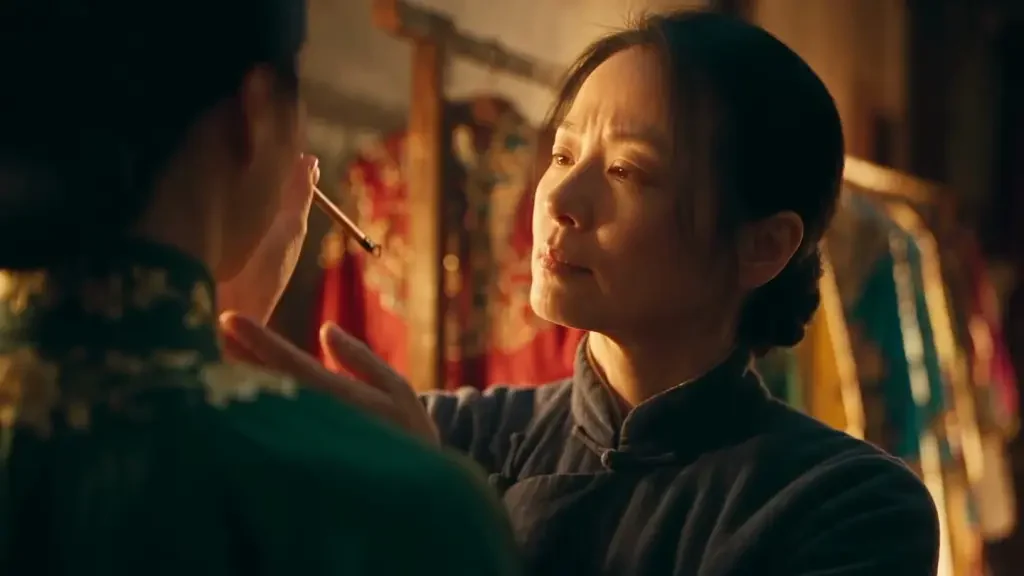
Backstage before the show
Start on an actor's profile as she closes her eyes for eyeliner. Warm bulbs pick out the eyelids and brush tip. Pull back over her shoulder to reveal her reflection, then follow her to the red curtain.

Cats in costume
Shoot a vertical close-up series of cats in costume. Cut from a gray cat in a blue hat to a ginger cat in antlers, holding on their whiskers, eyes and twitching ears.
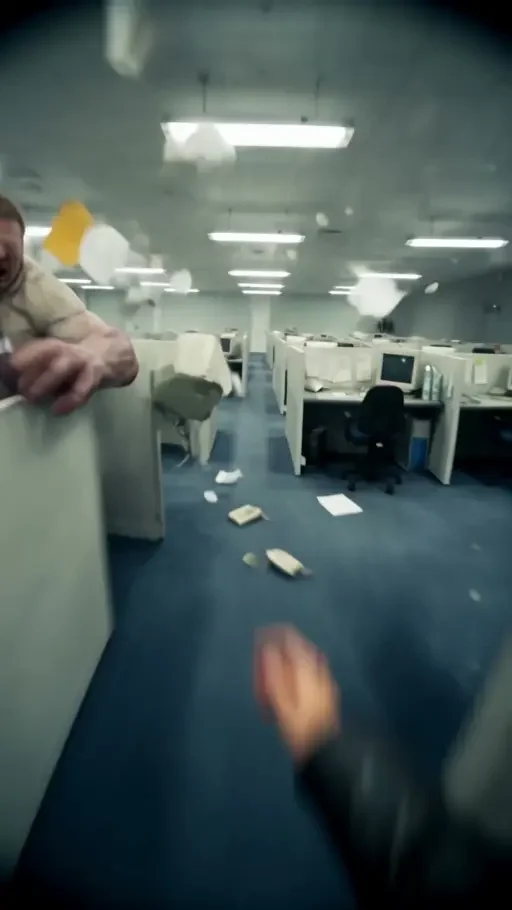
Office sprint
Run a handheld first-person camera through a cool-lit office. Turn sharply between cubicles as papers scatter, sprint toward a bright door, then cut to a hand opening a car door without breaking pace.
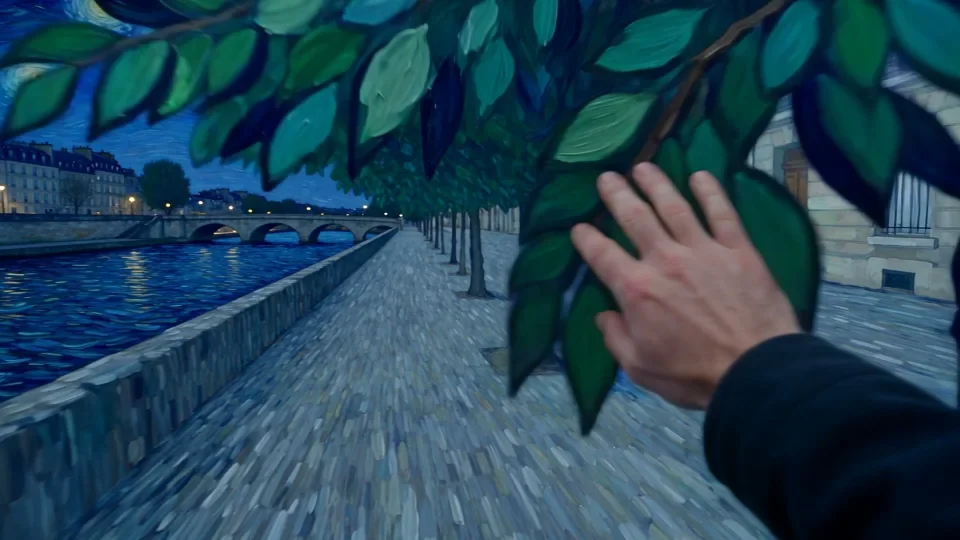
Through Five Art Styles
Follow a single camera move through five painted worlds. Let the brushstrokes, palette and lighting change as the camera crosses each threshold. Keep the movement continuous through the final frame.
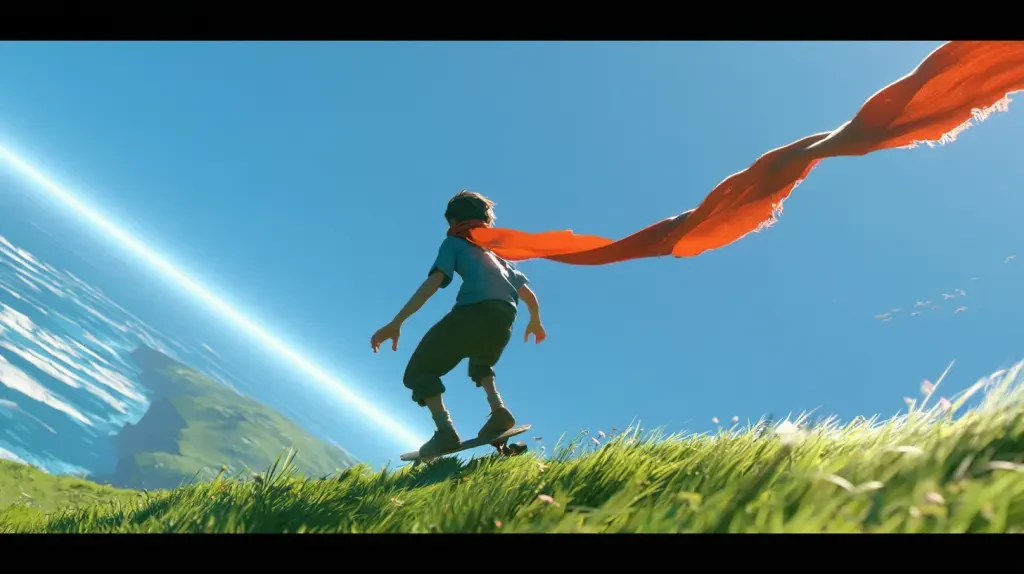
Coastal longboarding
Track a longboarder speeding down a grassy coastal slope, an orange scarf streaming in the wind. Rise into a final wide shot of the bay.
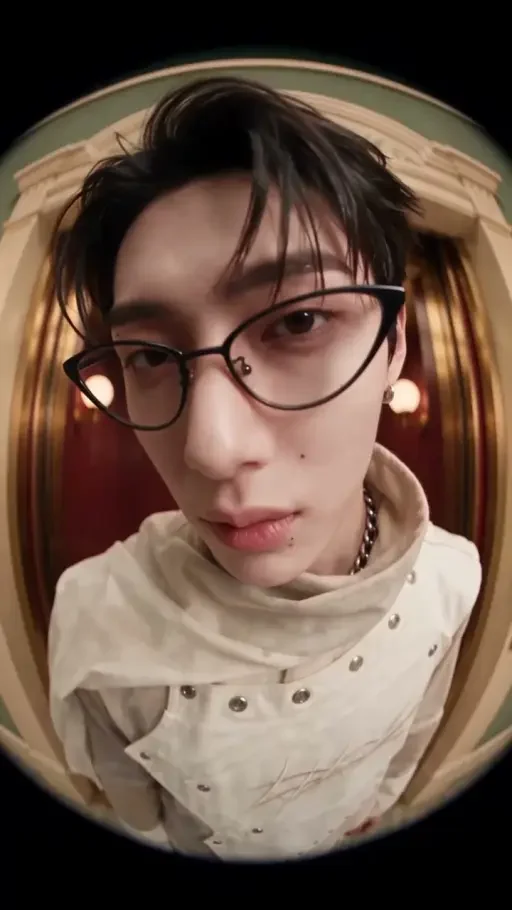
Elevator outfit changes
Open with a fisheye close-up, then cut to a symmetrical full-body shot in front of a vintage elevator. Swap streetwear outfits as the scene changes, keeping the camera still to highlight color and texture.
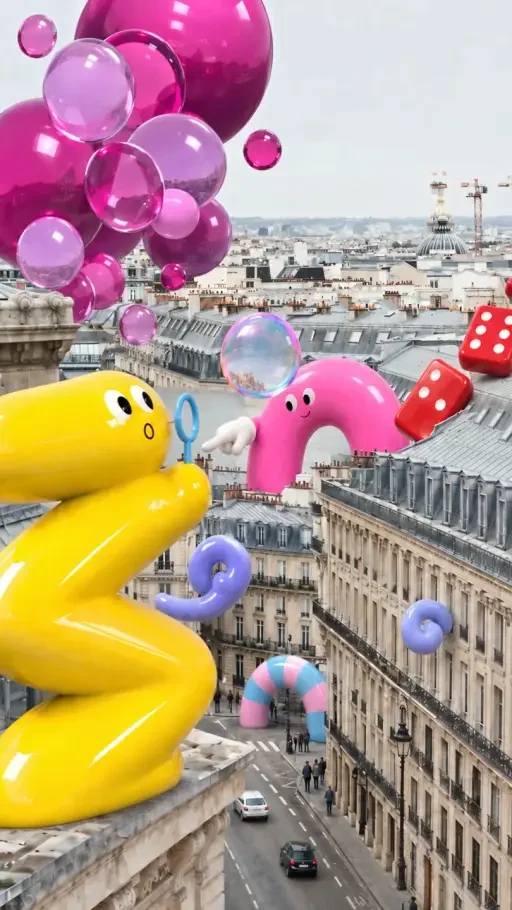
Balloons over the city
Glide from rooftops to street level in a vertical frame. Giant colorful balloons and bubbles float between the buildings, reflecting the light and revealing the depth of the street.
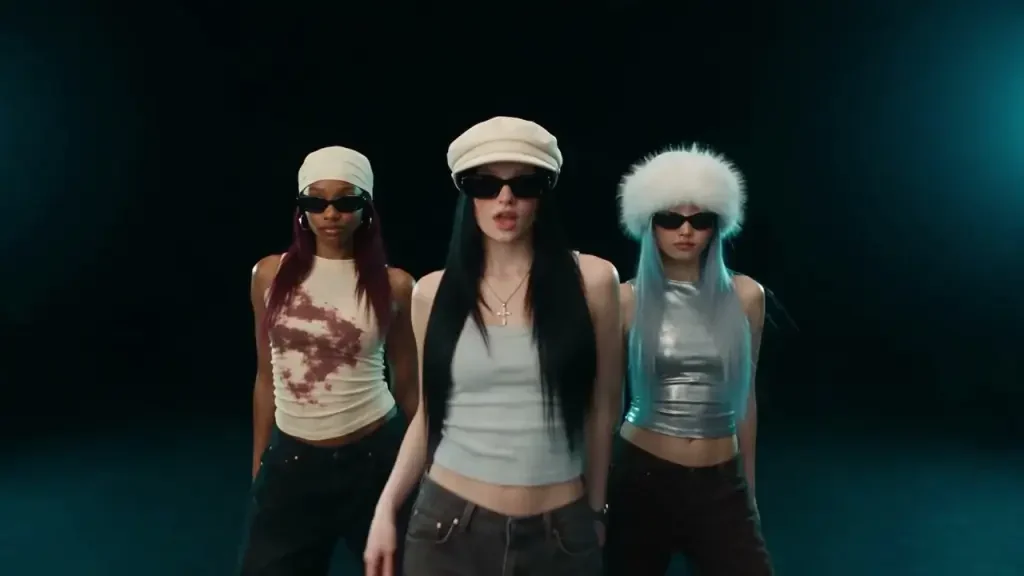
Studio dance trio
Frame three dancers in sunglasses side by side in a dark studio. Cut to solo close-ups on the beat, catching shoulder turns, hand gestures and lyrics delivered to the lens, then return to the trio.
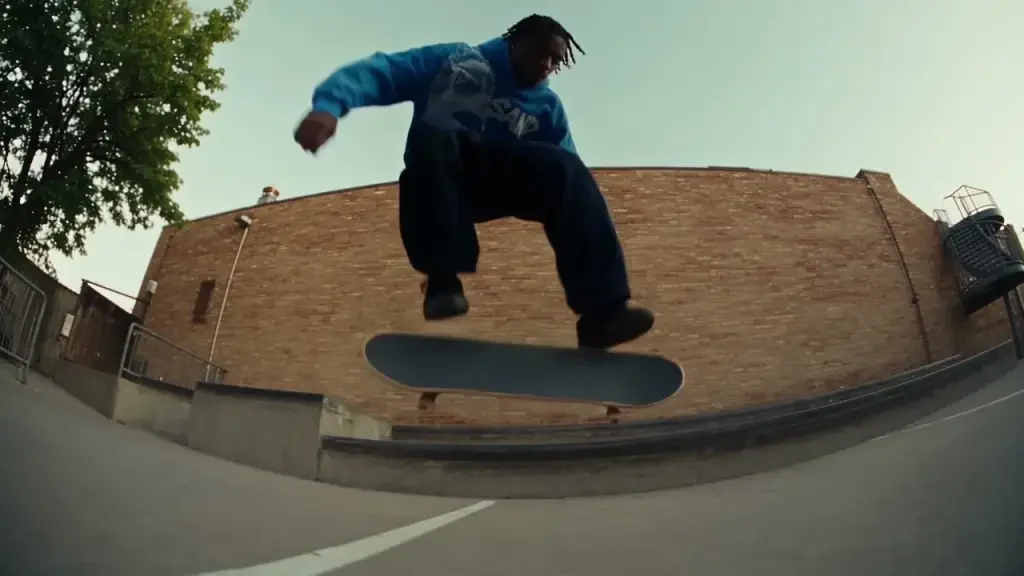
Streetwear campaign
Film two models from ground level beside a brick wall, with sneaker soles and railings in the foreground. Cut to the white print on a blue hoodie, then to another model in the shade of a colonnade.
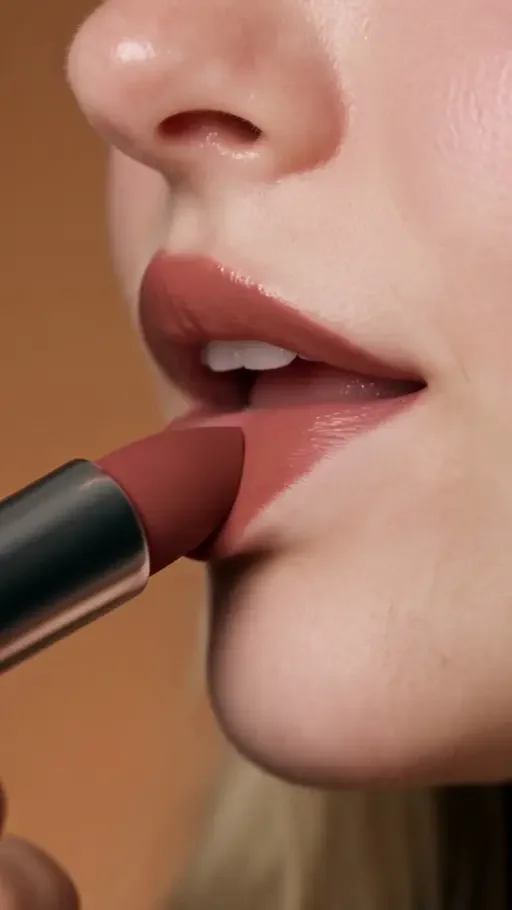
Lipstick campaign
Shoot a vertical lipstick ad in soft light. Cut from a silhouette to glossy lips in close-up, then catch a reflection on the silver lipstick tube.
How to use MAGI-2
Build your first take around one thing the audience should see and one thing they should hear.
Choose a starting point.
Describe the subject in Text to Video, upload a first frame in Image to Video, or add visual and audio cues in Reference to Video. Type @ in the prompt to select an image, video, or audio reference.
Write the action in order.
Name who moves first, where the camera is, and what ends the shot. “A barista sets down a glass, then looks up when a bicycle bell rings outside” gives the scene a beginning, a turn, and a reason to cut.
Pick the framing and duration.
A vertical frame suits the barista standing behind the counter. A wide frame leaves space for the cyclist to pass the window. Choose the shortest available duration that gives both actions time to read. Pick a duration from 4 to 30 seconds and choose whether to generate sound.
Generate a take and review it twice.
Watch once with the sound on. Then mute it and see whether the barista’s glance still makes sense. If the glance comes too early, change that cue and keep the rest of the MAGI-2 prompt intact.
Who can use MAGI-2?
Start with the decision you need a clip to help you make.
Product photographers.
Use MAGI-2 to try a moving version of a shot you already like. Start with the photo you want to keep, then compare a slow camera move with a locked shot in which only the product moves. Check the shape and any lettering before choosing a take.
Filmmakers and storyboard artists.
Turn a storyboard panel into a timing test. Give the actor a line and leave space for a reaction. Play the take for someone who has never seen your boards, and ask when they understood what the character wanted.
Musicians and editors.
Bring the section of a track where something changes. Try a visual cut on the beat, then a second take that holds through it. Listen with the picture to decide which version gives the entrance more weight.
MAGI-2 vs. Seedance 2.5, Gemini Omni 1.2 Flash, and MiniMax H3 Max
Compare the models by shot length, source material, and the changes you expect to make.
| Model | Clip length and resolution | Starting material | When to choose it |
|---|---|---|---|
MAGI-2 Audio-Visual Sync | Up to 30 seconds at 1080p | Text plus up to 10 images, 5 videos, and 5 audio clips | Time a cut to a bell, a line of dialogue, or a beat from your own track. |
| Up to 30 seconds per generation (1080p / 4K studio workflows) | Text, images, video, and audio | Continue a scene past the first take. Seedance supports extended multi-reference storytelling. | |
| 3–15 seconds. Draft at 360p or 720p, then upscale to 1080p or 4K. | Text, images, short motion clips, and audio cues | Revise a shot in conversation. Ask for a change to the background after you like the subject’s movement. | |
| Up to 15 seconds with up to 2K studio framing. | A text prompt or a source image, with written sound direction | Try several ways to animate one product photo before settling on a camera move. |
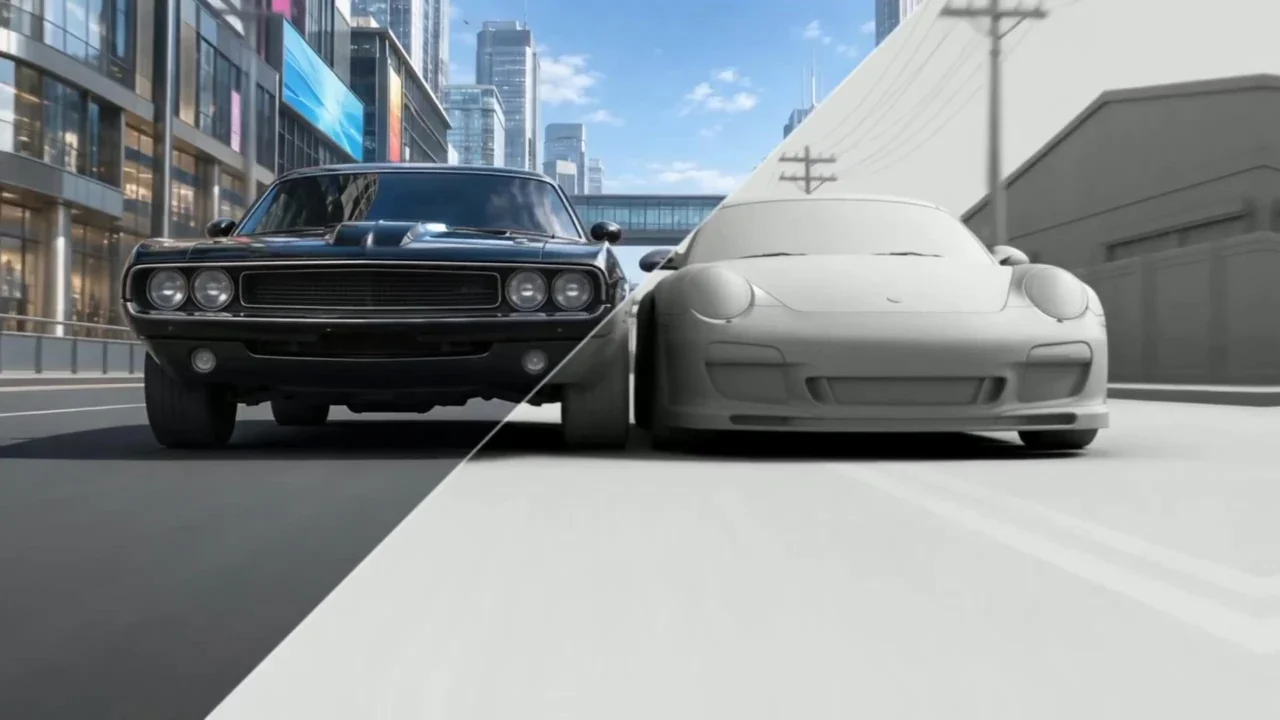
Side-by-side benchmark test
For a side-by-side test, give each model the same cup photo and ask for a ten-second shot that ends with the cup touching wood. Compare three things on playback. Does the handle keep its shape? Can you read the maker’s mark? Does the tap land when the base meets the shelf?
MAGI-2 pricing
New users receive free welcome credits to test MAGI-2 in any mode. On Gemini Omni Studio, 1080p generation costs 18 credits per second across Text-to-Video, Image-to-Video, and Reference-to-Video — including synchronized sound and references. A 5-second clip costs 90 credits; a 10-second clip costs 180 credits.
Interactive Duration Cost Estimator
Unified 18 credits/s rate across Text-to-Video, Image-to-Video (First/Last Frame), and Reference-to-Video. Audio toggle and multimodal references add zero extra surcharges.
Subscription Plans
Choose a monthly or annual plan to get the best value.
Basic
Ideal for hobbyists and beginners
- 1990 credits/month
- Gemini Omni AI Video
- Multiple AI video models
- AI Image Generation
- Standard generation speed
- No watermark
- Private generation
- Customer support
- Commercial Use License
Standard
Perfect for most creators
- 4490 credits/month
- Gemini Omni AI Video
- Multiple AI video models
- AI Image Generation
- Priority generation
- No watermark
- Private generation
- Priority customer support
- Commercial Use License
Pro
Ideal for power users
- 10990 credits/month
- Gemini Omni AI Video
- Multiple AI video models
- AI Image Generation
- Fastest generation speed
- No watermark
- Private generation
- Expert team support
- Commercial Use License
Credit Packs
Buy credits once and use them anytime.
Starter Pack
Great for occasional use
- 2990 credits
- Includes all features
- Credits never expire
Creator Pack
Perfect for most creators
- 4990 credits
- Includes all features
- Credits never expire
Professional Pack
Ideal for power users
- 9990 credits
- Includes all features
- Credits never expire
Suited to small projects and first-time use. No subscription — purchase as needed.
MAGI-2 FAQ
Find answers about sound, clip length, references, revisions, and the downloadable Preview.
Can MAGI-2 make a video with sound from text alone?
Yes. MAGI-2 can generate a video and its soundtrack from a written prompt. Describe the sound as part of the scene. For a kitchen shot, you might hear an egg crack in the foreground while a radio plays in the next room. If someone speaks, name the speaker and put the line in quotation marks. Leave a little time after the line if you want the other character’s reaction to carry the ending.
How long can a MAGI-2 video be?
The full MAGI-2 model supports up to 30 seconds per generation (4–30s). The public Preview produces 10 seconds per clip. Check the duration choices in the generator you are using when planning a take. For a longer piece, divide the script where the view or action naturally changes. An exterior shot can end as a door closes, for example, and the next clip can open on the people waiting inside.
How do I keep a product recognizable between shots?
Give MAGI-2 a clear reference image and name the details that need to carry across the cut. For a sneaker, that might be the red stitched heel and the shape of the sole. If a second image shows the room where the shoe should appear, say which photo supplies the product and which supplies the setting. Check lettering, seams, and left-right orientation in each take before you use it in a product listing.
Can MAGI-2 change just part of an existing video?
The full MAGI-2 model supports targeted edits to an existing clip. Describe the change and identify the movement, framing, or sound you want to carry over. For example, ask for late-afternoon light on a train platform while the camera follows the same passenger. Compare the opening and final frames as well as the edit itself. A detail that looks right in a still can drift as the camera moves.
Which version of MAGI-2 can I download?
Sand.ai publishes the MAGI-2 Preview weights on Hugging Face. The model card explains how to generate a 10-second video from text or one image with a prompt. It also lists the hardware, software, and separate refinement stage for 1080p output. If you want to direct a scene with several images, an audio track, or an existing video, Gemini Omni Studio offers the full model and accepts all of those references online.
Create your first MAGI-2 video
Start with an action you can describe in one sentence and a sound that belongs with it.